Dashboard Tour
Your drone dashboard is the command center for monitoring, chatting, and configuring your drone.
Drone Dashboard
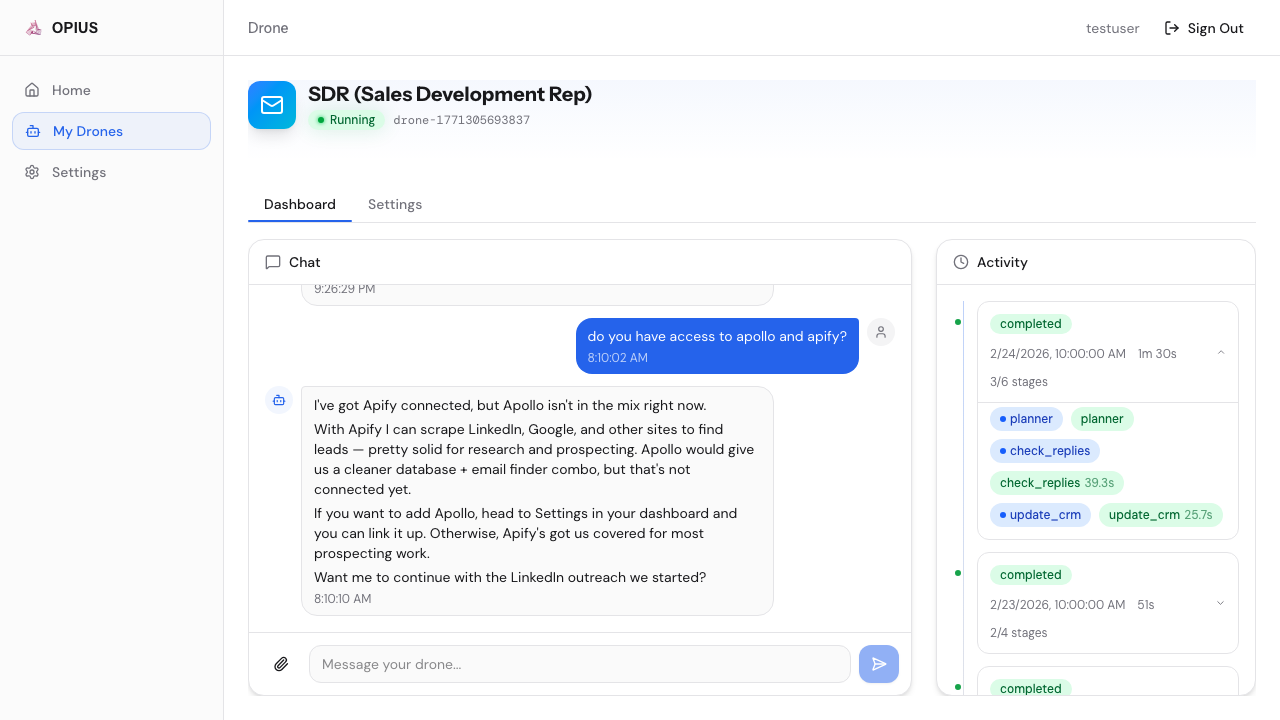
The main dashboard (/drones/{your-drone}) shows:
Metrics Bar
Top-level stats for today’s activity — leads found, emails sent, replies received, meetings booked (varies by drone type).
Conversation Stream
A unified feed where chat messages and run activity interleave chronologically. Type natural-language commands:
Find 20 fintech CTOs in the Bay Area and email themThe drone responds with real-time progress updates inline. Run activity cards show stages, results, and trigger badges (Scheduled, Manual). See Conversation Mode for details.
Drone Settings
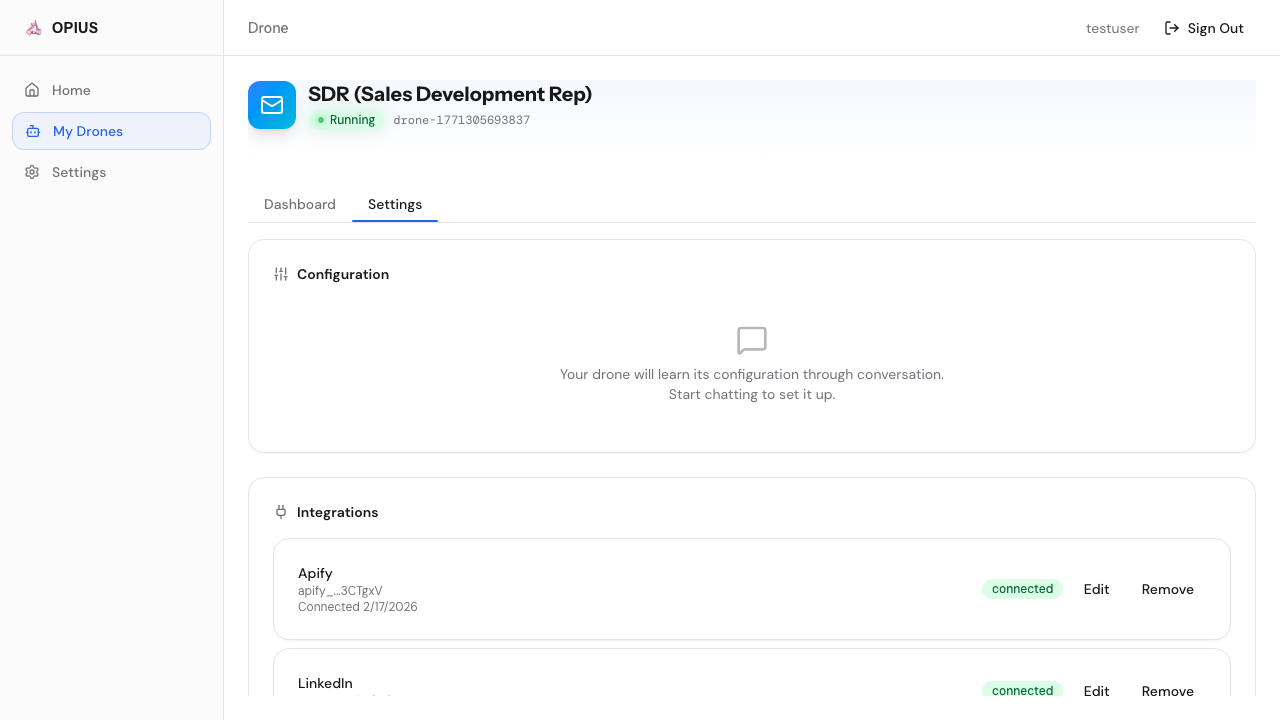
The settings page (/drones/{your-drone}/settings) has several sections:
Configuration
Edit your drone’s core settings — ICP (Ideal Customer Profile), daily limits, tone, calendar link, etc. These are the same fields from the setup wizard.
Integrations
Connect and manage your tool integrations. Each integration shows its connection status and method (OAuth, API key, or browser login).
Credential Vault
Store website login credentials for tools that don’t have API integrations (e.g., job boards, internal wikis). Credentials are encrypted at rest.
Messaging Channels
Connect additional channels to chat with your drone:
- WebChat — Built-in (always available)
- Slack, Telegram, WhatsApp, Discord — Connect via bot tokens
Schedules
View and customize your drone’s cron schedules. See Schedules for details.
Danger Zone
- Pause Drone — Suspends the instance (small storage cost continues)
- Stop & Terminate — Permanently deletes the drone and all data
My Drones
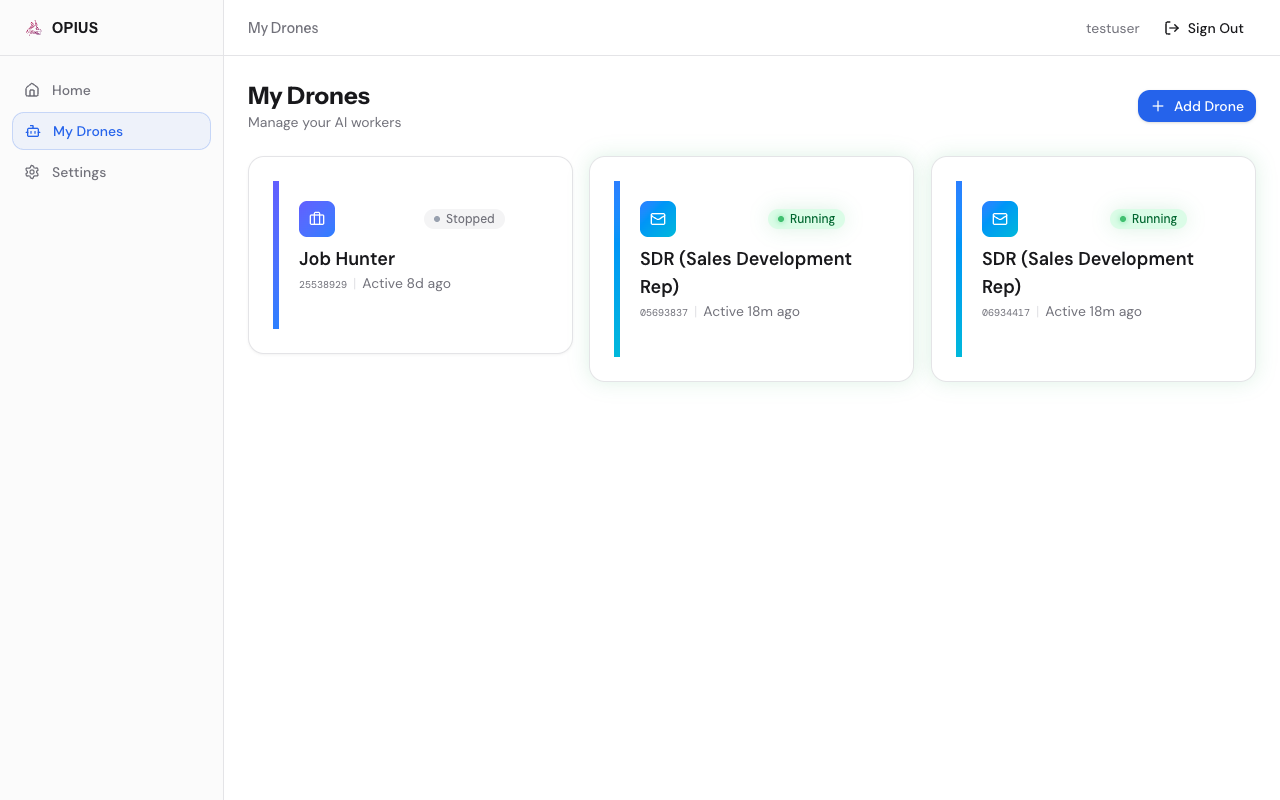
The overview page (/drones) shows all your active drones with status, last activity, and quick access.
Account Settings
Manage your profile, email, and billing from Settings in the top navigation.